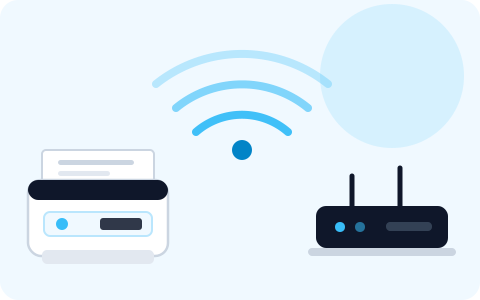
A wireless printer joins your Wi-Fi network the same way a phone or laptop does: it finds the network by name, authenticates with the password, and is given an address on the network. Once that has happened, any computer or phone on the same network can be pointed at it. Most wireless setup problems are a failure at one of those three stages, so it helps to know which stage you are in.
What you need before starting
- Your network name (SSID), spelled exactly as your other devices show it.
- Your Wi-Fi password, which you type into the printer and nowhere else.
- The printer powered on, with ink or toner and paper installed.
- A device on the same network to finish setup from.
- About fifteen minutes; the printer may restart once or twice.
Step 1: Position the printer sensibly
Wireless printers usually have small internal antennas and are often placed low down, in a cupboard or behind a desk — all of which weaken the signal. Before you begin:
- Put the printer where a phone standing in the same spot shows a usable Wi-Fi signal.
- Keep it away from large metal objects, microwave ovens and cordless phone base stations.
- Avoid placing it on the far side of a thick masonry wall from the router if you can.
- If the printer must live somewhere with a weak signal, a wired Ethernet connection is usually more reliable than adding a wireless extender.
Step 2: Identify the correct network
This is the single most common stumbling block. Modern routers often broadcast more than one network, and a printer may only be able to use one of them.
| You see | What it means | What to do |
|---|---|---|
| One network name only | Your router combines both bands under a single name, or broadcasts only 2.4 GHz. | Select that network. If the printer cannot connect, see the note on band steering below. |
| Two names, one ending in 5G or 5GHz | The bands are separated. Many printers support 2.4 GHz only. | Select the name without the 5G suffix unless your printer's specifications state it supports 5 GHz. |
| A "Guest" network | Guest networks usually isolate devices from each other. | Do not use it for the printer. Your computer would not be able to reach it. |
| No network list at all | The printer's scan found nothing, or your network is hidden. | Move the printer closer and rescan, or enter the network name manually. |
Band steering
Some routers advertise both bands under one name and decide which one a device gets. If a 2.4 GHz-only printer repeatedly fails to join such a network, most router administration pages allow you to split the bands into two names temporarily, connect the printer, and then decide whether to leave them split. Changes like this are made in your router's own settings, which are reached from a browser on your own network.
Step 3: Run the wireless setup wizard on the printer
This is the standard method and works on any printer with a display. Exact menu names vary by model.
-
Open the printer's settings menu.
Look for a gear, wrench or Setup icon on the touchscreen, or a Menu/Setup button on models with a small display.
-
Select Network, Wireless or Wi-Fi settings.
If wireless is switched off, turn the wireless radio on first. Some printers disable it automatically when a USB cable is connected.
-
Choose Wireless Setup Wizard (or Wi-Fi Setup).
The printer scans for networks. This takes five to thirty seconds.
-
Select your network name from the list.
If it is not shown, select the option to enter a network name manually and type it exactly, including capitalisation.
-
Enter the Wi-Fi password.
Take your time on a small keypad. Where the printer offers a "show password" option, use it to check what you typed before confirming.
-
Wait for the confirmation message.
A steady wireless light generally means connected; a blinking light means still trying or failed.
Step 3 (alternative): Connect with the WPS button
If your router has a WPS button and your printer offers a WPS option, you can connect without typing the password. This works only where both devices support it.
- Start WPS on the printer.
Select the WPS or push-button option in the wireless menu.
- Press the router's WPS button within two minutes.
The pairing window is deliberately short.
- Wait for the wireless light to become steady.
If WPS is switched off on your router, leave it off and use the password method. Turning off network security features to make a printer connect is not a good trade.
Step 3 (alternative): Connect using the manufacturer's setup app
Many printers, particularly those without a display, are set up from a phone app published by the manufacturer. The app typically connects your phone to a temporary wireless network the printer creates, passes your home network details across, and then reconnects your phone.
- Install the app only from your phone's official app store, and only the app named in the printer's own documentation.
- The app will ask for your Wi-Fi password so it can pass it to the printer. That is expected behaviour for a manufacturer's own setup app on your own phone.
- Be cautious with any other app, website or caller that asks for your network password. EA Consultants LLC never asks for it.
Step 4: Confirm the printer joined the right network
Print a network configuration or wireless test report from the printer's Network or Reports menu. It tells you three useful things:
- The network name the printer actually joined — check it matches the one your computer uses.
- The connection status, usually shown as Connected or Ready.
- The IP address, typically like
192.168.1.42. Write it down; it is needed if you ever have to add the printer manually.
Step 5: Add the printer to your devices
Joining the network makes the printer reachable. Each device still needs the printer added before applications can use it.
- Windows: Settings › Bluetooth & devices › Printers & scanners › Add device. Full steps: Windows printer setup.
- Mac: System Settings › Printers & Scanners › Add Printer. Full steps: Mac printer setup.
- iPhone or iPad: with an AirPrint-capable printer, choose Share › Print in any app and select the printer. No separate setup is needed.
- Android: printing usually works through a print service. Check Settings › Connected devices › Printing (wording varies by phone) and enable the default print service or the manufacturer's plugin.
Keeping a wireless printer connected
A printer that connects today and disappears next week is usually reacting to a change on the network rather than failing.
- If you change your Wi-Fi password or router, the printer must be set up again. It has no way to learn the new credentials.
- If your router hands out a different IP address, a printer added by IP address stops working. Adding it by name, or reserving a fixed address in the router, avoids this.
- Power-saving modes on some printers make them slow to wake. If the first print job of the day fails but the second succeeds, that is often the cause.
- Firmware updates occasionally reset network settings. Reconnect using the same steps.
Independence notice: EA Consultants LLC is an independent third-party company providing informational printer setup and troubleshooting guides. We are not affiliated with, sponsored by, endorsed by, or authorized by printer manufacturers or other technology brands unless explicitly stated. All product and brand names, trademarks and logos are the property of their respective owners and are used for identification purposes only.
Wi-Fi printer setup questions
Can I connect a printer to Wi-Fi without a computer?
Usually yes. Any printer with a control panel and display can join a network on its own. You will still need a computer, phone or tablet to print from, and that device needs the printer added to it.
Why does my printer see the neighbours' networks but not mine?
The most common reason is that your network broadcasts only on 5 GHz, or that your own network is hidden while others are not. Check whether your router advertises a separate 2.4 GHz network, and enter your network name manually if it is hidden.
Do I have to give my Wi-Fi password to anyone?
No. You type it into the printer, or into the manufacturer's own setup app on your own phone. No support guide, website or caller needs it. EA Consultants LLC will never ask for your Wi-Fi password, device passwords or remote access.
Is a wired connection better than Wi-Fi?
A wired Ethernet connection is more stable and is worth considering if the printer sits near the router. Wi-Fi is more flexible and is fine for most homes. Neither affects print quality.